How to Use GPT Image 2 Without Making It Harder Than It Needs to Be
GPT Image 2 became much easier to recommend after its April 21, 2026 release because it moved past the old pattern of “pretty image, weak control.” If you are searching for gpt image 2, gpt-image-2, or even gpt image v2, you are usually trying to solve the same problem: how to turn a rough idea into a usable visual without spending half your time rewriting prompts. For practical use, the GPT Image 2 and gpt-image-2 workflow are the same thing from a beginner point of view.
For beginners, the biggest shift is not just image quality. GPT Image 2 is stronger at following instructions, preserving important details during edits, handling wider aspect ratios, and producing cleaner in-image text than older image tools. That means you can use gpt image 2 for product shots, thumbnails, blog art, ads, mockups, moodboards, and quick concept scenes without feeling like every prompt is a lottery ticket.
You do not need to start with an API. For first projects, the fastest path is usually a browser workflow where you can switch between text-to-image and image-to-image, upload references, compare variations, and keep your prompt history visible. That is why many beginners start with ChatGPT Images 2.0 for casual tests, then move to a dedicated workspace when they want tighter control. A browser tool like GPT Image 2 app is a practical middle ground because it combines prompt optimization, reference uploads, aspect-ratio controls, and export-ready generation in one place.
What GPT Image 2 Is Actually Good At
GPT Image 2 works best when the task needs both creativity and control. That is the main reason gpt image 2 feels different from older generators that were fine for moodboards but shaky for real production work.
- Clear instruction following. GPT Image 2 responds better when you specify subject, environment, lighting, lens feel, and composition.
- Image editing. The gpt-image-2 workflow is not only for fresh generations. It is also useful for replacing backgrounds, adjusting styling, removing clutter, and restyling an existing image while keeping what matters.
- Flexible aspect ratios. GPT Image 2 is comfortable with square, landscape, and portrait outputs, which makes it easier to produce banners, blog headers, story images, and presentation visuals.
- Stronger text handling. GPT Image 2 is better at dense labels, packaging, UI-like layouts, and multilingual text than earlier image tools, although you still get better results when your wording is explicit.
- Reference-guided work. A gpt image v2 workflow becomes much more reliable once you upload a product photo, sketch, or inspiration image instead of relying on text alone.
The simple rule is this: use gpt image 2 when the visual needs to match intent, not just style.
ChatGPT Images 2.0 vs the API vs a Browser Workspace
Beginners often treat these as interchangeable, but they solve different problems.
ChatGPT Images 2.0 is the easiest place to test ideas. You type a prompt, ask for a revision, and keep moving. It is good for quick one-off images, casual experimentation, and simple edits when you do not care about repeatable workflow yet.
The API version of gpt-image-2 is better for automation, batch jobs, internal tools, and production systems. If you need image generation inside a product, want to pass image URLs or file IDs, or need version-pinned snapshots, the API is the right layer. It is not the most beginner-friendly place to learn prompt discipline.
A browser workspace sits between those two. This is where a tool like GPT Image 2 app makes sense. You still get the simplicity beginners want, but you also get structured prompt entry, image-to-image mode, reference uploads, aspect-ratio selection, and quicker side-by-side iteration. If your goal is to learn gpt image v2 without juggling API parameters or losing track of revisions, that is often the smoother setup. For many people, a browser workspace is the fastest way to understand how gpt-image-2 behaves across both generation and editing.
A Beginner-Friendly GPT Image 2 Workflow
1. Pick the right starting mode
Start with text-to-image when you have an idea but no visual anchor. Start with image-to-image when you already have a sketch, product photo, portrait, or layout that you want to preserve. New users waste a lot of time with gpt image 2 by beginning from scratch when they already have a usable reference.
Text-to-image is better for:
- brainstorming visual directions
- generating blog headers and social concepts
- testing style, mood, and composition quickly
Image-to-image is better for:
- product photography variations
- portrait restyling
- background changes
- keeping a composition while changing style or lighting
2. Write the prompt in layers
GPT Image 2 responds well when the prompt is structured instead of stuffed with hype words. A useful beginner pattern looks like this in plain English. It works whether you are prompting inside ChatGPT, a gpt-image-2 tool flow, or a browser-based gpt image v2 workspace:
- Scene: where the image happens
- Subject: who or what matters most
- Important details: material, lighting, mood, angle, color, camera feel
- Use case: banner, blog image, product card, ad creative, thumbnail
- Constraints: what must stay, what must not appear
That structure helps gpt-image-2 separate your intent from your decoration. Instead of “make it amazing and cinematic,” write “clean skincare bottle on pale stone, soft side light, minimal beige background, premium ecommerce photography, front-facing composition, no extra props.” The second version gives gpt image 2 something concrete to build.
3. Tell the model what to preserve during edits
This is where many beginners lose good results. When editing with gpt image v2, do not only describe what should change. Also list what must stay fixed. Preserve identity, pose, framing, object placement, lighting direction, packaging, label area, or background geometry when relevant.
A weak edit request sounds like this:
- Make the image better and more premium.
A stronger edit request sounds like this:
- Change the background to brushed concrete.
- Preserve the bottle shape, label placement, camera angle, and soft left-side lighting.
- No new props, no extra text, no logo changes.
That preserve language is one of the fastest ways to make gpt image 2 behave like a tool instead of a slot machine.
4. Set aspect ratio before you chase detail
A lot of beginners get one image they like, then realize it is the wrong shape for the job. Decide early whether the asset is a blog hero, product card, story post, banner, or slide cover. GPT Image 2 can handle aspect-ratio changes, but your composition decisions improve when the frame is locked early.
This is another point where a browser workflow helps. In GPT Image 2 app, for example, aspect ratio, references, mode switching, and prompt refinement live together, so your gpt image v2 process stays visible rather than scattered across tabs.
5. Revise one thing at a time
GPT Image 2 is strong, but giant revision stacks still cause drift. If the first result is close, change one variable per turn: warmer light, tighter crop, cleaner background, more realistic fabric, less clutter, stronger negative space. Small, directional changes usually outperform a total rewrite.
A Practical GPT Image 2 Prompt Formula for Beginners
When you do not know how to start, use this mental checklist before pressing generate:
- What is the subject?
- What is the environment?
- What is the camera distance and angle?
- What kind of light should the scene use?
- What must stay clean, centered, or preserved?
- What is the final asset for?
If you can answer those six questions, your gpt image 2 prompt is usually strong enough to produce a useful first draft. Most failed first attempts in gpt image v2 come from missing one of those inputs, not from using the wrong style words.
Here is how that logic plays out:
- Weak: “make a modern office scene”
- Better for gpt-image-2: “modern startup office at dusk, glass walls, warm practical lights, one laptop on a wooden desk, clean product-marketing photo, eye-level shot, shallow depth of field, no people, no visible logos”
The goal is not to write the longest prompt. The goal is to remove ambiguity that forces gpt image v2 to guess.
Two Realistic Mini-Case Scenarios
Scenario 1: A solo founder needs launch visuals
A solo founder wants three clean banner images for a landing page but has no designer on hand. They start with gpt image 2 text-to-image to explore direction, then switch to image-to-image using a rough product screenshot as reference. After two short revisions, they get one hero image, one use-case visual, and one abstract background that all feel related.
This is a strong use case for GPT Image 2 app because the founder can keep prompt iterations, aspect ratios, and reference uploads in one browser session instead of bouncing between chat, design software, and file folders.
Scenario 2: A marketer wants product photos that feel less generic
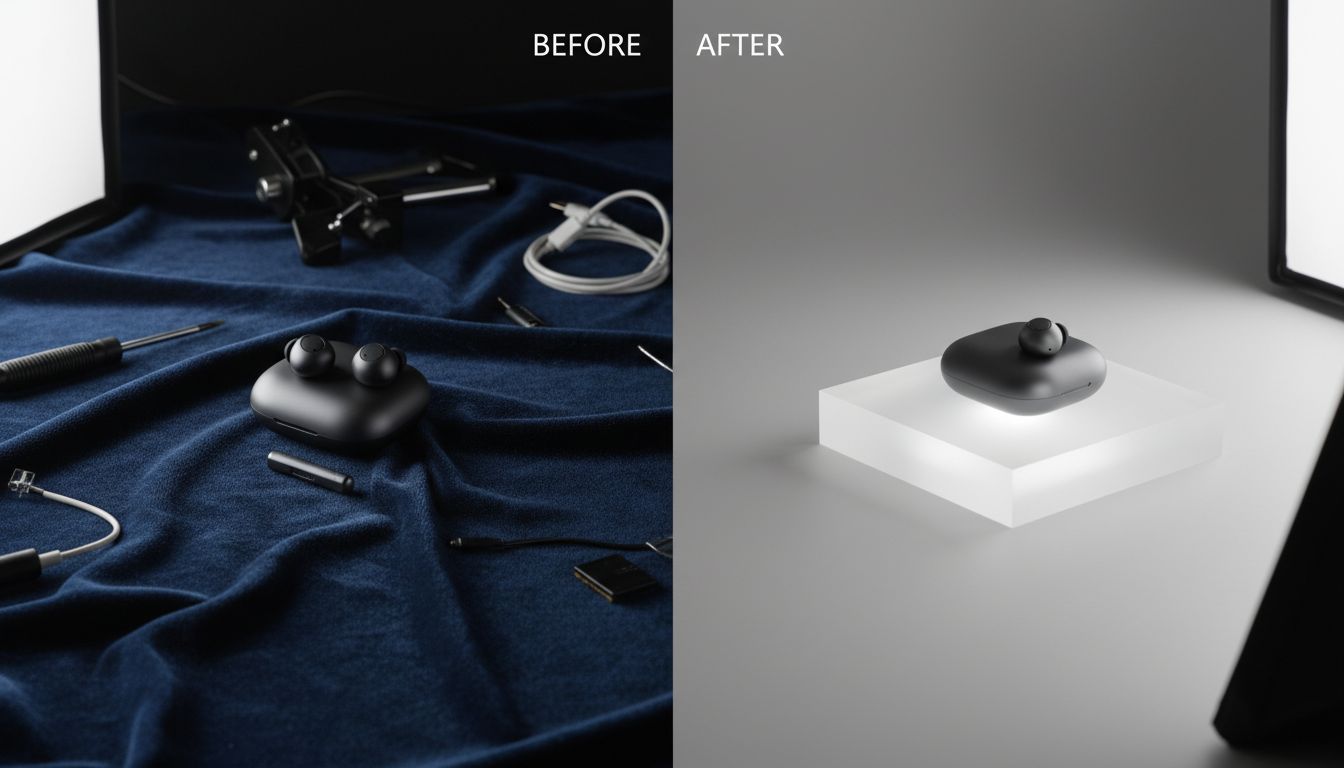
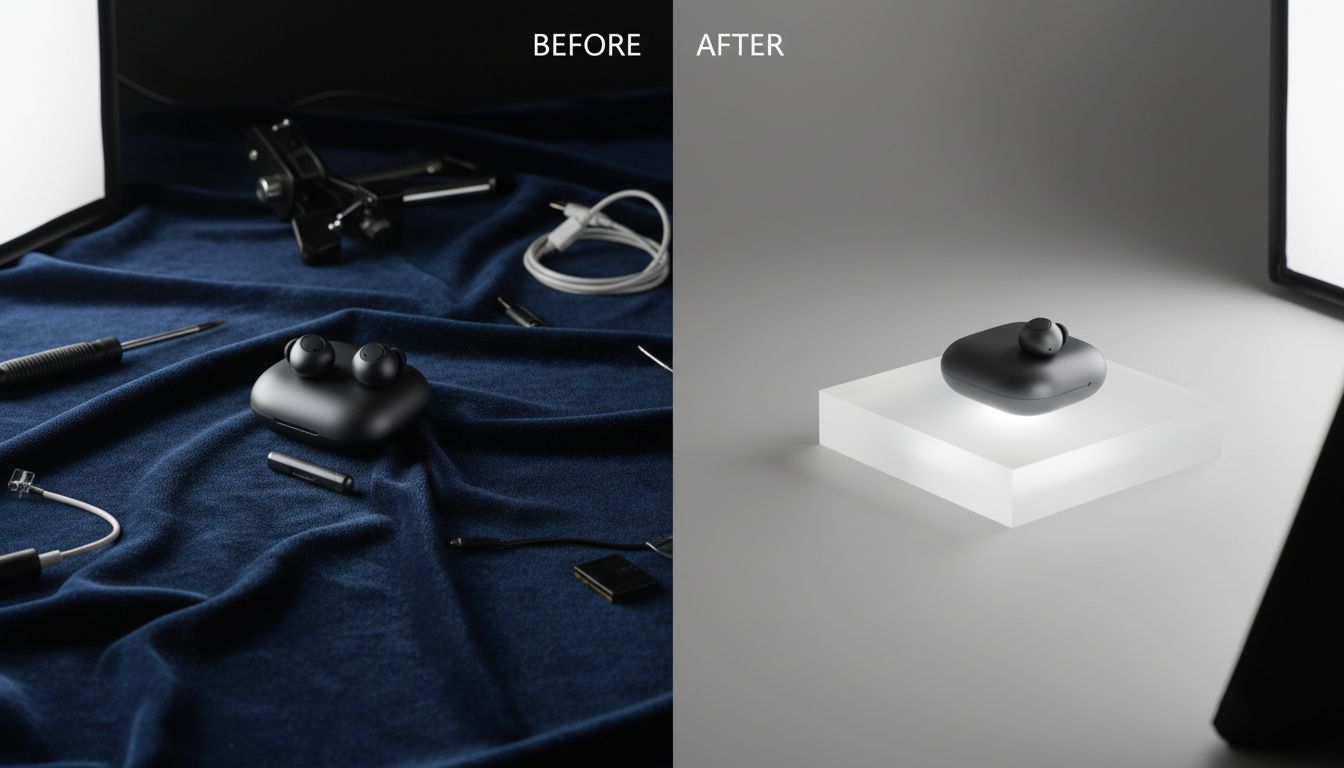
A marketer has a decent product image, but the background looks flat. Instead of generating a brand-new scene, they use gpt-image-2 editing to keep the product angle and relight the set, replace the background, and remove a distracting prop. The result feels more polished because the edit request focused on what should stay locked. This is a good example of how a gpt image v2 process becomes more predictable once the model has a clear source image.
This is where gpt image v2 usually beats a full regenerate. When the core subject is already correct, controlled editing is safer than starting over.
Common Mistakes When Using GPT Image 2
- Being vague. GPT Image 2 is better than older tools, but vague prompts still produce generic images.
- Changing too much at once. If you ask gpt image 2 to fix lighting, replace props, redesign styling, change camera angle, and improve text all in one move, drift is likely.
- Forgetting preserve language. In gpt-image-2 edits, what stays is as important as what changes.
- Ignoring the use case. A thumbnail, blog hero, ad creative, and ecommerce photo need different framing decisions.
- Forcing text-heavy design too early. GPT Image 2 is better with text, but beginners still get cleaner results when they first lock layout and scene, then refine literal wording.
- Skipping safety expectations. Because GPT Image 2 is much more realistic, sensitive requests involving real people or unsafe edits can be blocked or redirected. That is normal, not a bug.
Text-to-Image vs Image-to-Image for GPT Image 2 Beginners
If you only remember one comparison, remember this one.
Text-to-image is for discovery. It is the right move when you need options, mood, style, or a fresh composition. It helps you learn what gpt image 2 naturally does well.
Image-to-image is for control. It is the right move when you already have the right subject, product, face, or frame and want gpt image v2 to transform it without losing structure.
Beginners often think text-to-image is the “real” mode and image-to-image is advanced. In practice, image-to-image is often easier because you are giving gpt-image-2 less room to misread your intent.
A Beginner Checklist Before You Click Generate
- Decide whether the job is text-to-image or image-to-image.
- Lock the aspect ratio before refining style.
- Write the scene, subject, important details, use case, and constraints.
- If editing in gpt-image-2, add a preserve list.
- Ask for one revision at a time.
- Keep your best gpt image v2 prompt versions instead of rewriting from scratch.
- Use a browser workflow if you want faster iteration with less setup friction.
FAQs About GPT Image 2
Is GPT Image 2 the same as gpt-image-2?
Yes. GPT Image 2 is the plain-language product name people search for, while gpt-image-2 is the model-style naming pattern you will see in technical contexts and tool integrations.
What do people usually mean by gpt image v2?
Most people use gpt image v2 as shorthand for the newer GPT Image generation stack with better instruction following, editing, text handling, and wider production use than earlier versions. In many guides, gpt image v2 is simply another way of referring to the current GPT Image 2 experience.
Should beginners start in ChatGPT or in a dedicated tool?
Start in ChatGPT Images 2.0 if you only want quick experiments. Start in a dedicated browser tool if you want reference uploads, repeatable prompt workflow, aspect-ratio control, and easier switching between text-to-image and image-to-image. That is why a lot of new users settle into GPT Image 2 app after the first few tests. The second route often makes the gpt-image-2 learning curve feel much simpler.
Why does GPT Image 2 still miss small details sometimes?
Because the model still has to balance scene composition, realism, and instruction following. Tiny text, crowded layouts, and long multi-part revisions increase the chance of drift. Shorter, more precise prompts usually help more than longer ones.
Can GPT Image 2 create marketing graphics with text?
Yes, and it is much better at this than older generators. Still, beginners get the best results when they specify the exact wording, placement, and style they need, or when they first lock the scene and then refine the text in a second pass.
Do I need the API to get good results?
No. The API matters when you need automation or product integration. If you are learning, a browser workflow is usually enough. That is one reason the GPT Image 2 app approach is useful for beginners: you can focus on prompts, references, and revisions before worrying about implementation.
The Best Next Step for Your First Project
If you want to practice gpt image 2 in a workflow that supports prompt refinement, image-to-image, references, and quick exports without API setup, start with gpt image 2 and run one text-to-image idea, one controlled edit, and one revision pass in the same session.